The Contacts window appears.
Optional: To export the contacts associated with a filter, on the Contacts tab, by using the Search field or the Advanced Search option, run the filter.
For information about how to filter contacts, see Copy of Search and Advanced Search. |
Click Export.
The Export Contacts window appears.
The Filter Name field displays the run filter. If you did not run a filter, the All value appears in the field. |
In the Export Format field, select the format in which you want the contacts to be exported to a file.
This field contains the contact export formats created in the Export Format window. For more information, see Export Format. |
Click Customize Format.
The Contact Columns window appears. The table in the window displays the names of the columns that will appear in the exported file, in addition to the position of those columns in the file (for example, the position 1 indicates the first column in the file).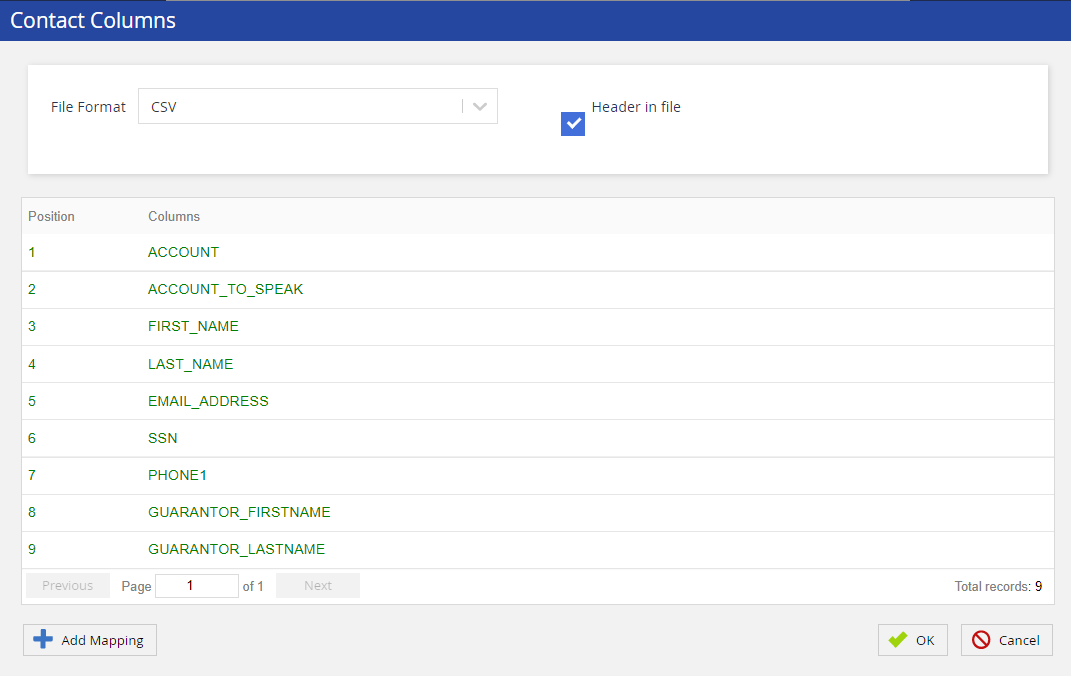
You can modify the position of a column by double-clicking the row displaying the name of the column.
In the File Format field, specify a format for the file to which you want to export the contacts.
The field contains the following options:
CSV: Comma-separated values (CSV) file.
Custom: Customized file. When you select this option, the following fields appear for you to specify characters:
- Field Delimiter
- Row Delimiter
- Quote
- Escape Character
- Pipe: .pipe file.
TAB Delimited: Tab-separated values (TSV) file.
- If you do not want a header to be included in the file, clear the Header in file checkbox.
- To add more columns in the file:
- Click Add Mapping.
The Add Mapping window appears. - Specify values in the following fields, and then click OK:
- Columns: Column that you want to be exported in the file.
- Position: Position of the column in the file.
- Click Add Mapping.
- If you do not want to export a column, in the Contact Columns window, hover over the row displaying the name of the column, and then click the close icon
 .
- In the Contact Columns window, click OK.
The Export Contacts window displaying the Data Format section appears. This section displays the columns that will appear in the exported file.
All the contacts are exported to a file on your computer.