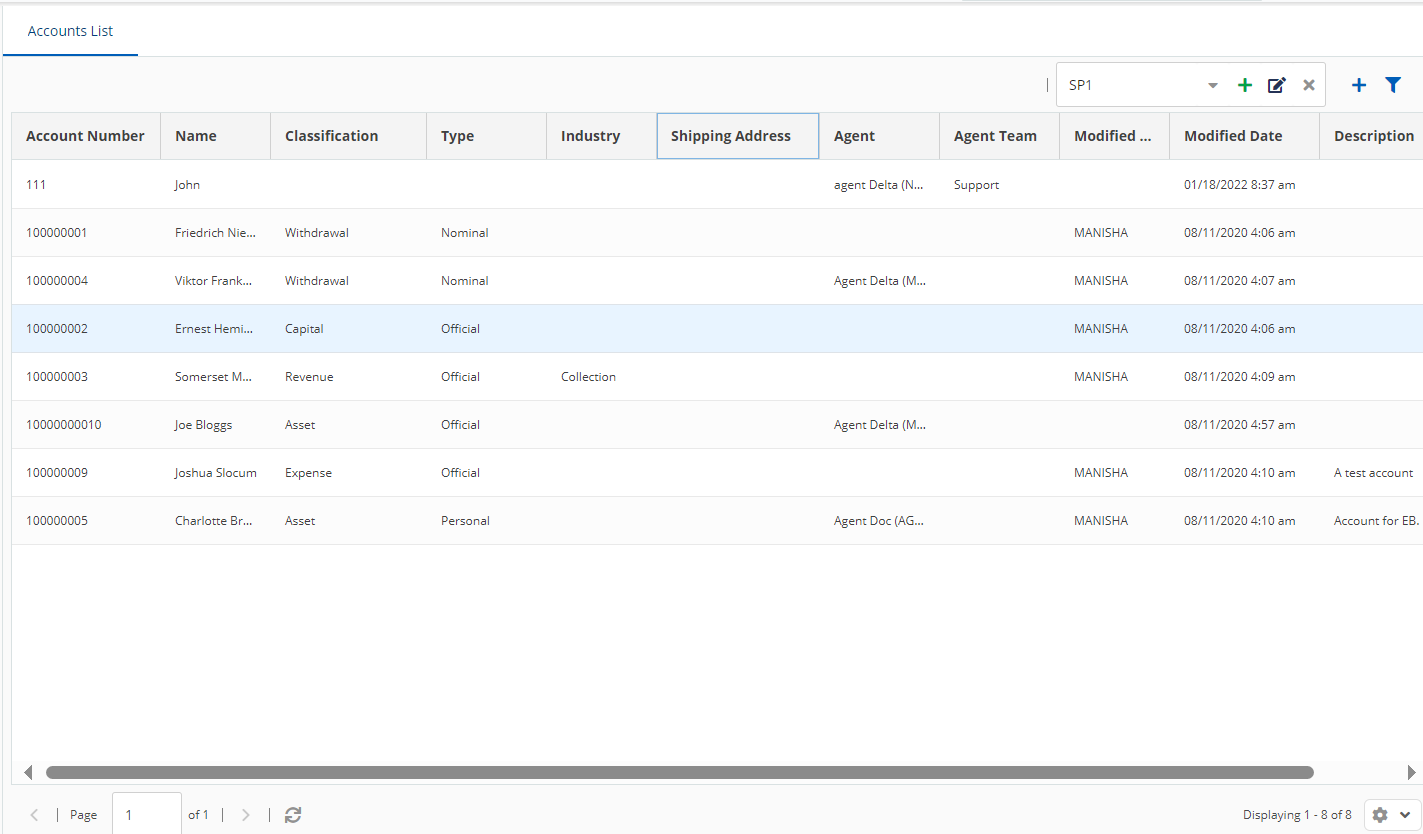
To access a list of accounts, on the Configure tab of the LiveVox Portal (LVP), click Account > Accounts.
|
To create an account:
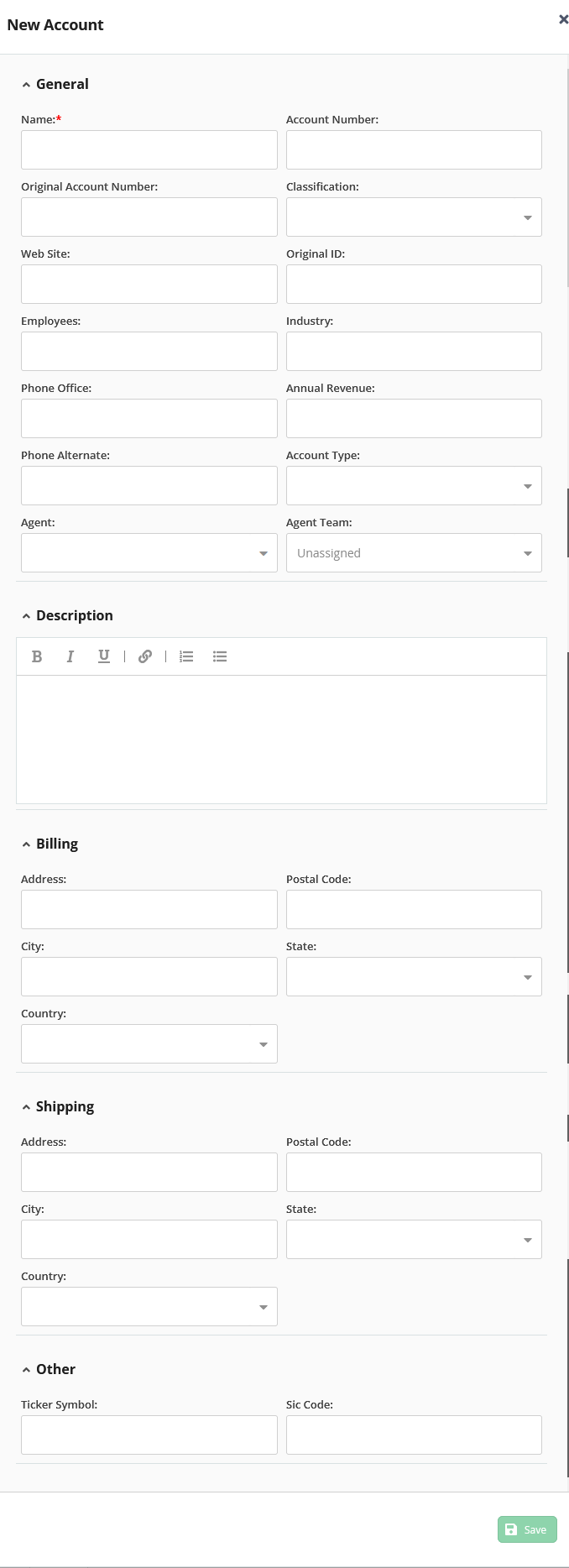
Specify values in the fields.
For information about the fields, see Account Field Descriptions. |
Click Save.
A message stating that the account has been created appears, along with the account details.
|
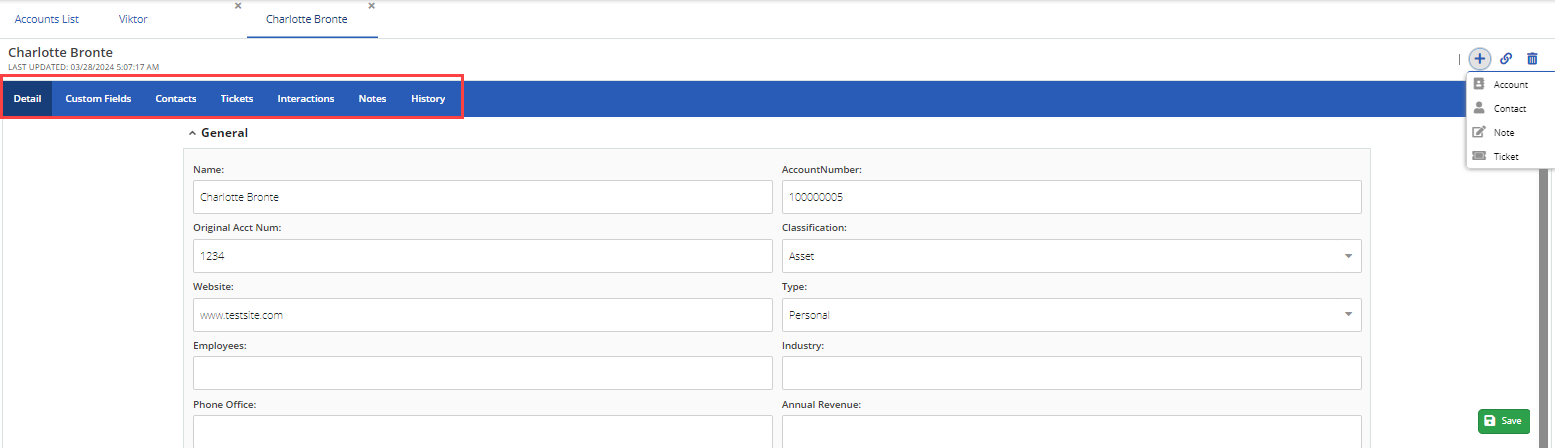
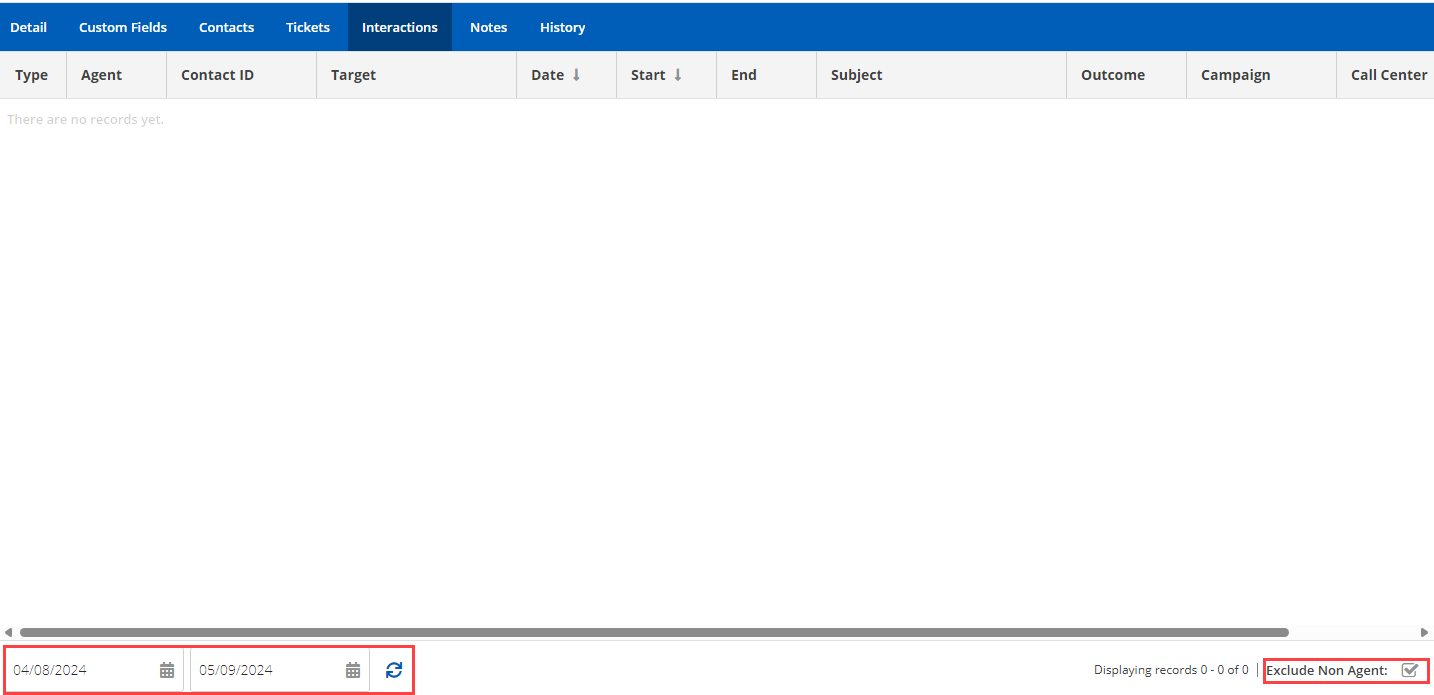
To access an account from the table in the Account List section, double-click the row displaying the account. Each account has associated tabs, such as Detail, Custom Fields, Contacts, Tickets, Interactions, Notes, and History.
If you have used a web form for the account, the Submitted Form tab appears on the account page. |
|
To modify an account, access the account, modify the values, and then click Save.
To create a contact, ticket, or note for an account, access the account, and then, on the New menu, click the corresponding option.
|
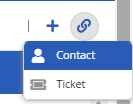
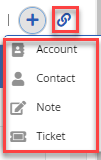
To link an account to an existing contact or ticket, access the account, and then, on the Link menu, click the corresponding option.
|
You can export accounts from the LiveVox Portal to a comma-separated values (CSV) file.
Ensure that the Account List section displays the accounts that you want to export. For information about how to filter accounts, see Filtering Accounts, Contacts, and Tickets. |
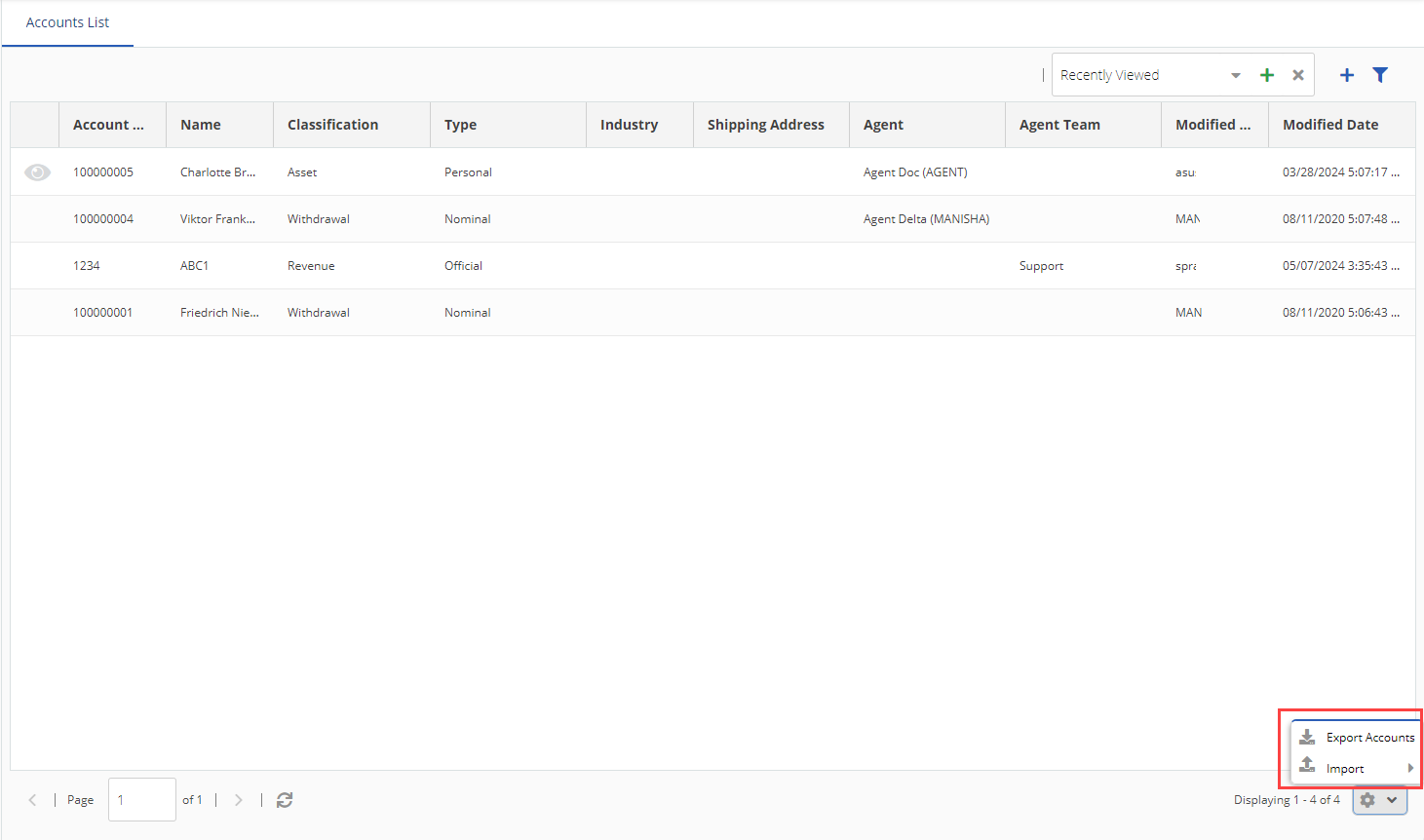
To export the accounts, in the Account List section, click the Settings icon  , and then click Export Accounts.
A CSV file containing the accounts from the LiveVox Portal (based on the applied filter) is downloaded.
You can import accounts from a file into the LiveVox Portal.
Ensure that each account record in the file that you want to import contains a name for the account and that the file size is not more than 15 megabytes (MB). |
To import the accounts:
, and then click Import > Accounts.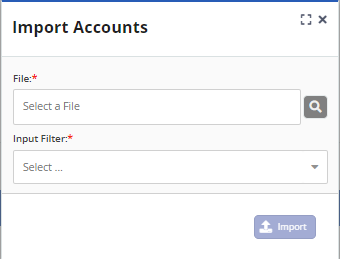
Specify values in the following fields:
 , and then select the file.
Input Filter: Select an input filter (a predefined format to import the data from the file). Ensure that the format of the file you selected in the File field corresponds to the format of the input filter.
You can automatically link accounts to contacts by importing a file (containing the account records linked to the contact records) into the LiveVox Portal.
|
You can view details, such as the status of the import or the date and time when the import started or ended in the User Tasks window. This window appears when you click the avatar icon |
 .
 in the Unlink column on the Contacts and Tickets tabs of the account.
