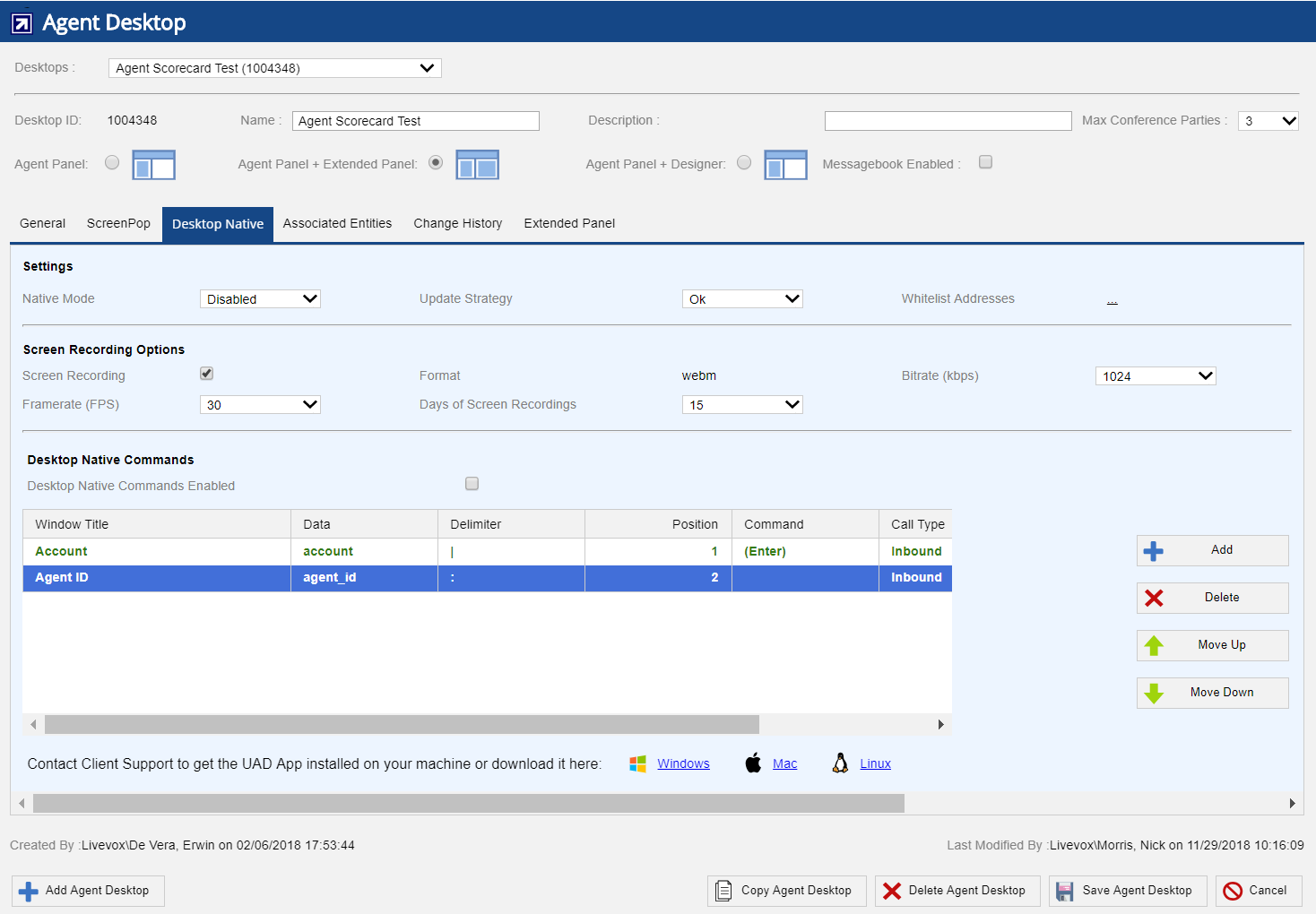
Desktop Native tab allows you to set configurations for the Agent Desktop Native application and Screen Recording options which enable the agent's full screen to be recorded. Navigate to Configure > Agent > Agent Desktop > Desktop Native tab to configure the following:
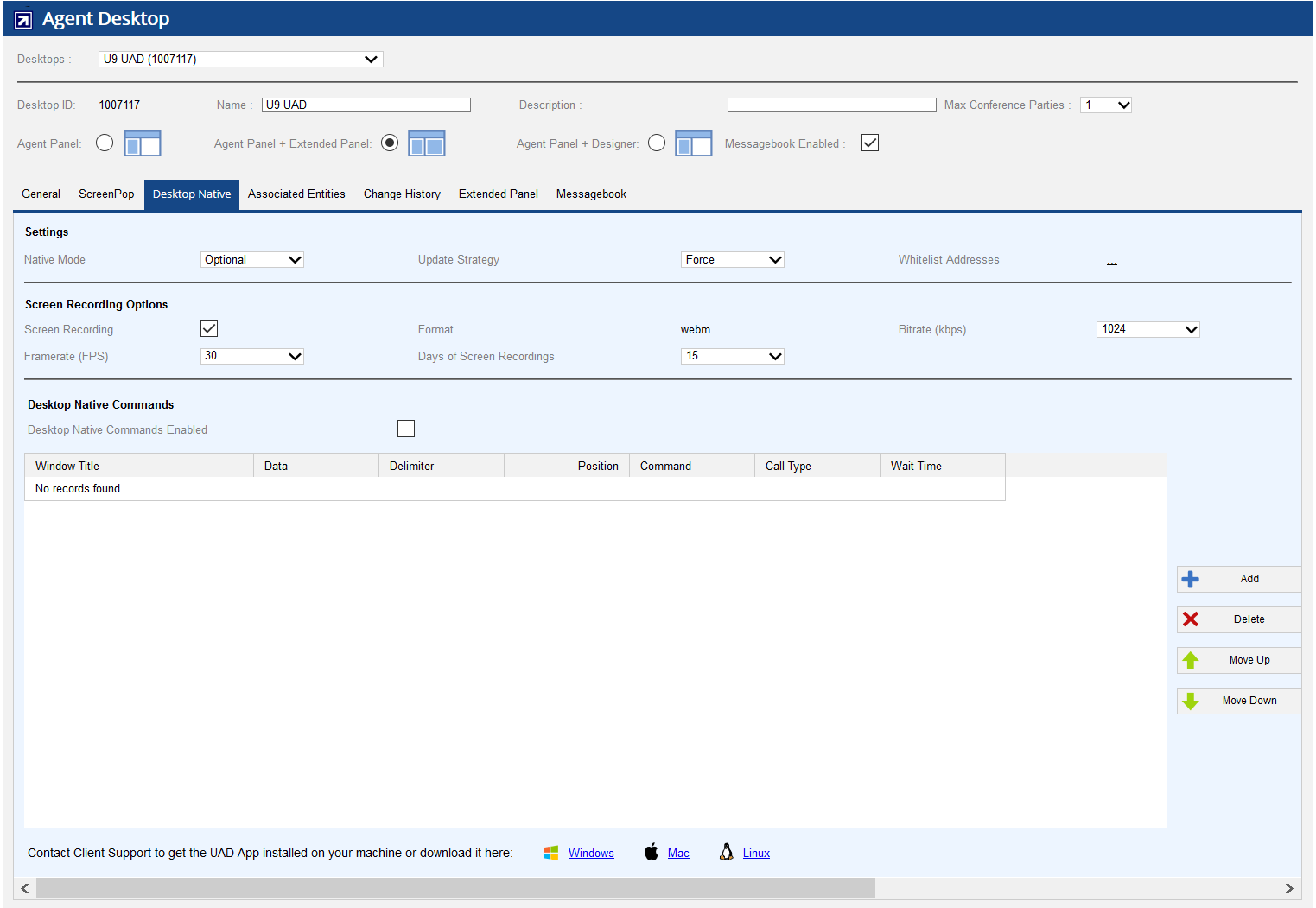
Settings
- Native Mode - Allows to set the native desktop mode from the available drop down options. Available options are:
- Disabled - Agent cannot log in using Agent Desktop Native (ADN).
- Optional - Agent can use the browser or ADN to log in.
- Required - Agent can only log in using ADN.
- Update Strategy - Allows to configure the native desktop update strategy. Available options are:
- Ok - There is no restriction to use any version of ADN.
- Ask - If agent has a different version installed than the one configured for the client, a dialog will ask for update confirmation.
- Force - After login, the update process will be triggered automatically, installing and starting the new version without intervention.
- Whitelist Addresses - Allows you to define trusted domains. This mechanism allows blocking of all loading resources which do not match the whitelists. Click the link to open the Whitelist addresses configuration interface that allows you to view and manage the list of all the approved addresses for the Desktop Native application.
- Add - Adds new entry. Enter the address to be added as whitelist address in the address field. Entry of values are supported by comma separated patterns.
- Delete - Deletes an entry. Select the address and click the Delete button to delete an entry.
- Ok - Click Ok to save the changes.
- Close - Click Close to discard the changes.
Screen Recording Options (when enabled)
This section will be displayed only if agent screen recording is enabled internally by LiveVox.
- Screen Recording Enabled - When selected, allows the agents to record their full screen.
- Format - The screen recording video format is webm.
- Bitrate (kbps) - Allows to set the number of bits that are conveyed per unit of time (kilo bytes per second) for the screen recording video. The available options are: 128*, 256, 512, 1024.
- Framerate (FPS) - Allows to set the number of frames displayed per second for a video. The available options are: 10, 20, 30*.
- Days of Screen Recordings - Allows to configure the number of days the screen recordings are hosted on the platform. The available options are: 3, 15*, 30, 45, 60, 90 and 180 days.
Defaults are denoted with an asterisk *.
- Enabling Agent Screen Recording must be requested through the Client Services and comes with additional cost.
- The screen recording functionality requires Agent Desktop Native.
|
Desktop Native Commands
- Desktop Native Commands Enabled - When enabled, this feature provides the ability to setup .Net and URL push.
When Desktop Native Commands Enabled checkbox is selected, the agent desktop opens in the same browser page and not as a pop up. |
Once enabled, you can add, update, delete, move up, and move down the data entry.
- Add Entry - Adds new entry (Fields with * are required to enter). Click the Add button to add an entry. You will see the popup window appears as shown below:
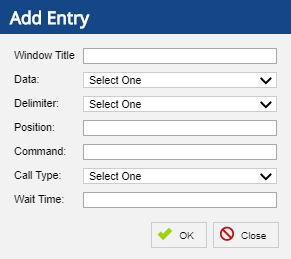
When adding a new information field you will be prompted to enter the following information:
- Window Title* - Enter the window title which is the client application name. Example: {push.txt - Notepad}
- Data* - Select the data field from the drop down.
- Delimiter - Select the value of delimiter from the drop down.
- Position - Enter the position of entry. The first position begins at 0 and increments from there.
Delimiter and Position fields are applied only for custom fields. |
- Command* - Enter free form .NET commands as keystroke. The specified command will be applied on the Data field automatically.
- Call Type - Select the call type from the drop down list and the available options are:
If you select the Call Type as Select One, then any of above call type is applicable.
- Wait Time* - Enter the time in milliseconds which specifies the time to make a call to the client application.
- Click OK to save the changes or Close to discard the changes.
- Click Save Agent Desktop button to save the changes.
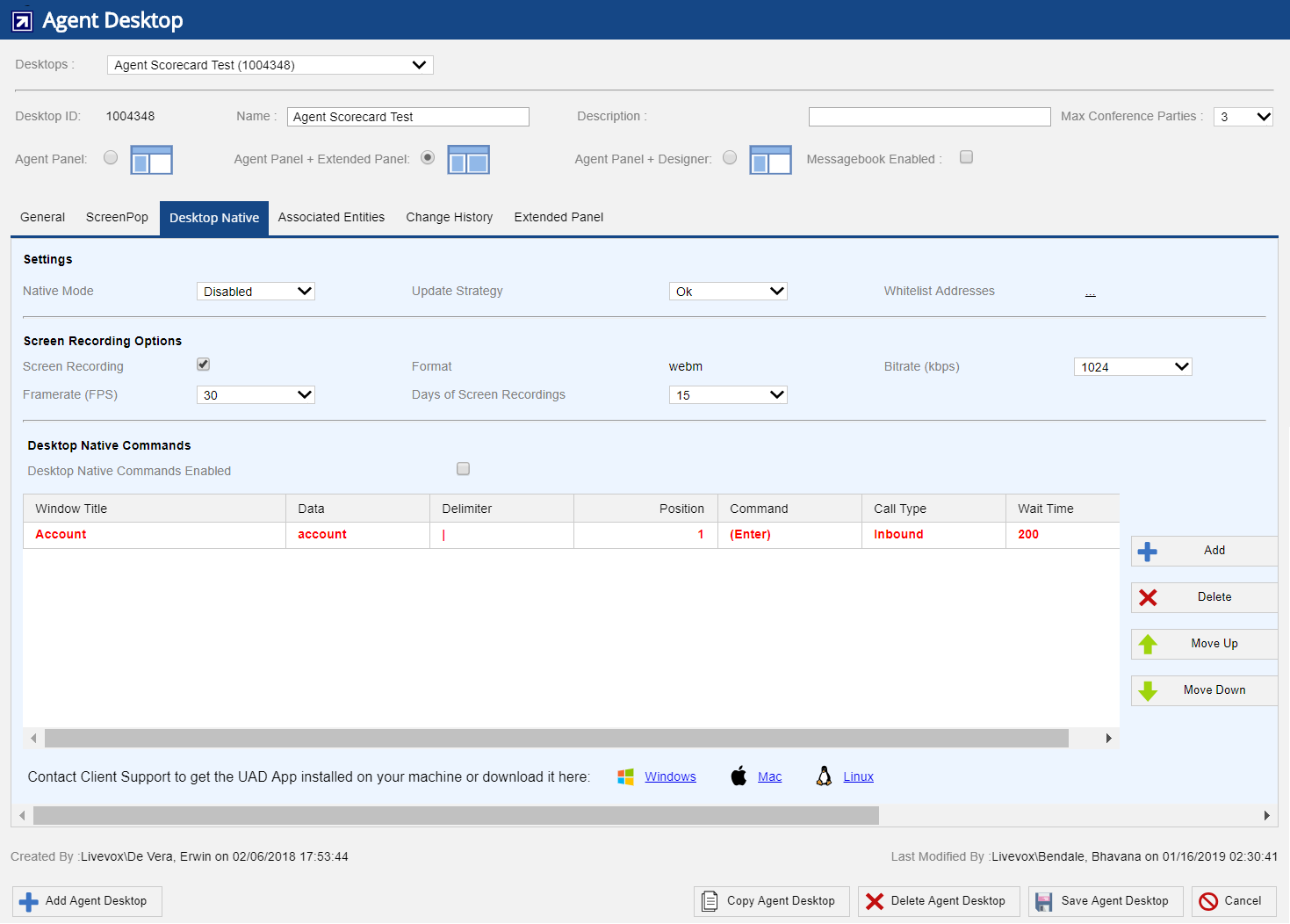
- Delete Entry- Deletes an entry. Select the row and Click the Delete button to delete an entry. You will see that the color of the row changes to red as shown below:
- Click Save Agent Desktop button to save the changes.
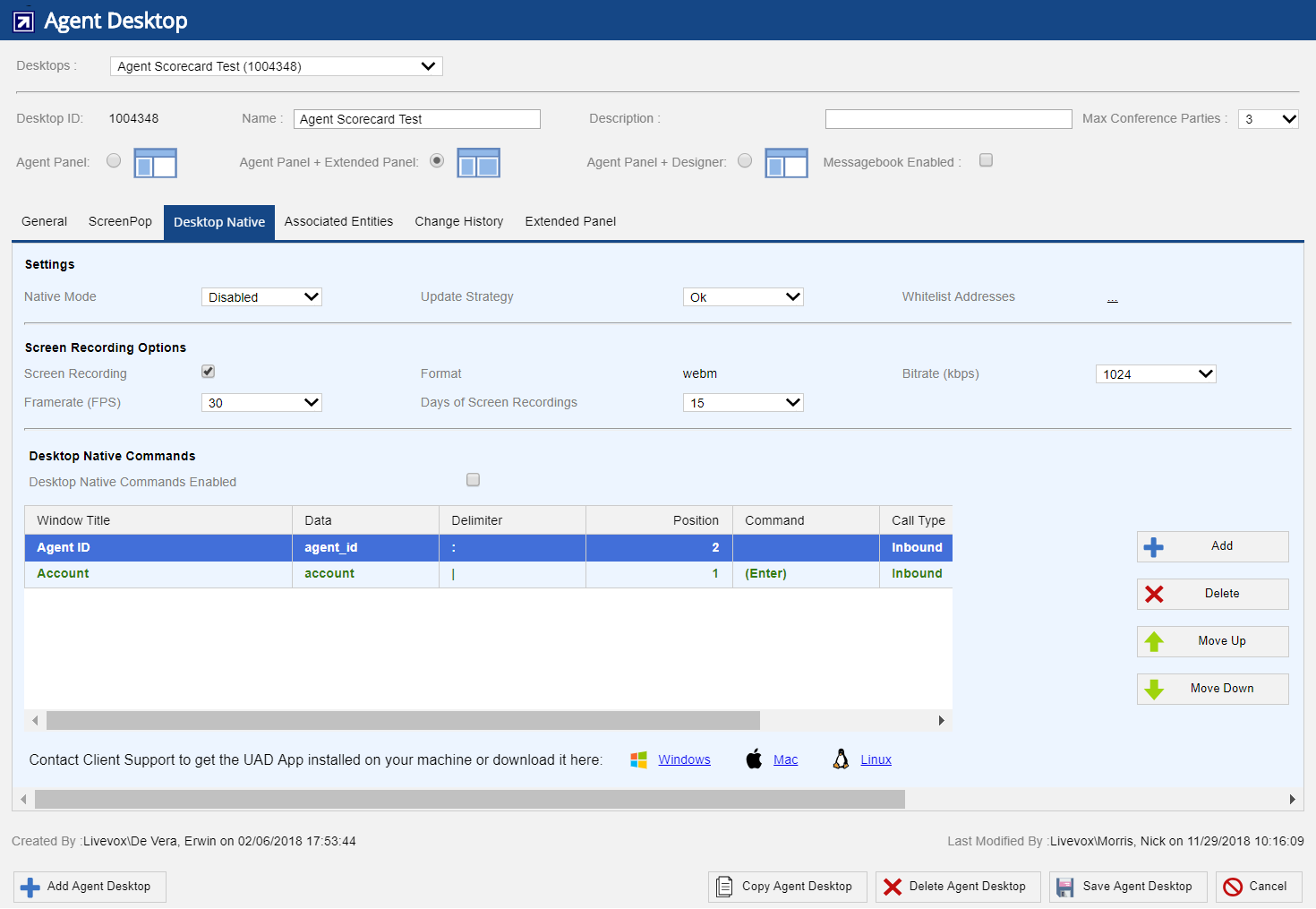
- Move Up Entry - Moves the row up by one position. Select the required row, Click Move Up button. You will see that the moved row (highlighted) as shown below:
- Click Save Agent Desktop button to save the changes.
- Move Down Entry - Moves the row down by one position. Select the required row, click Move Down button. You will see that the moved row (highligted) as shown below:
- Click Save Agent Desktop button to save the changes.
Updating an Entry
- Double click the entry which needs to be updated, the popup window appears as shown below:
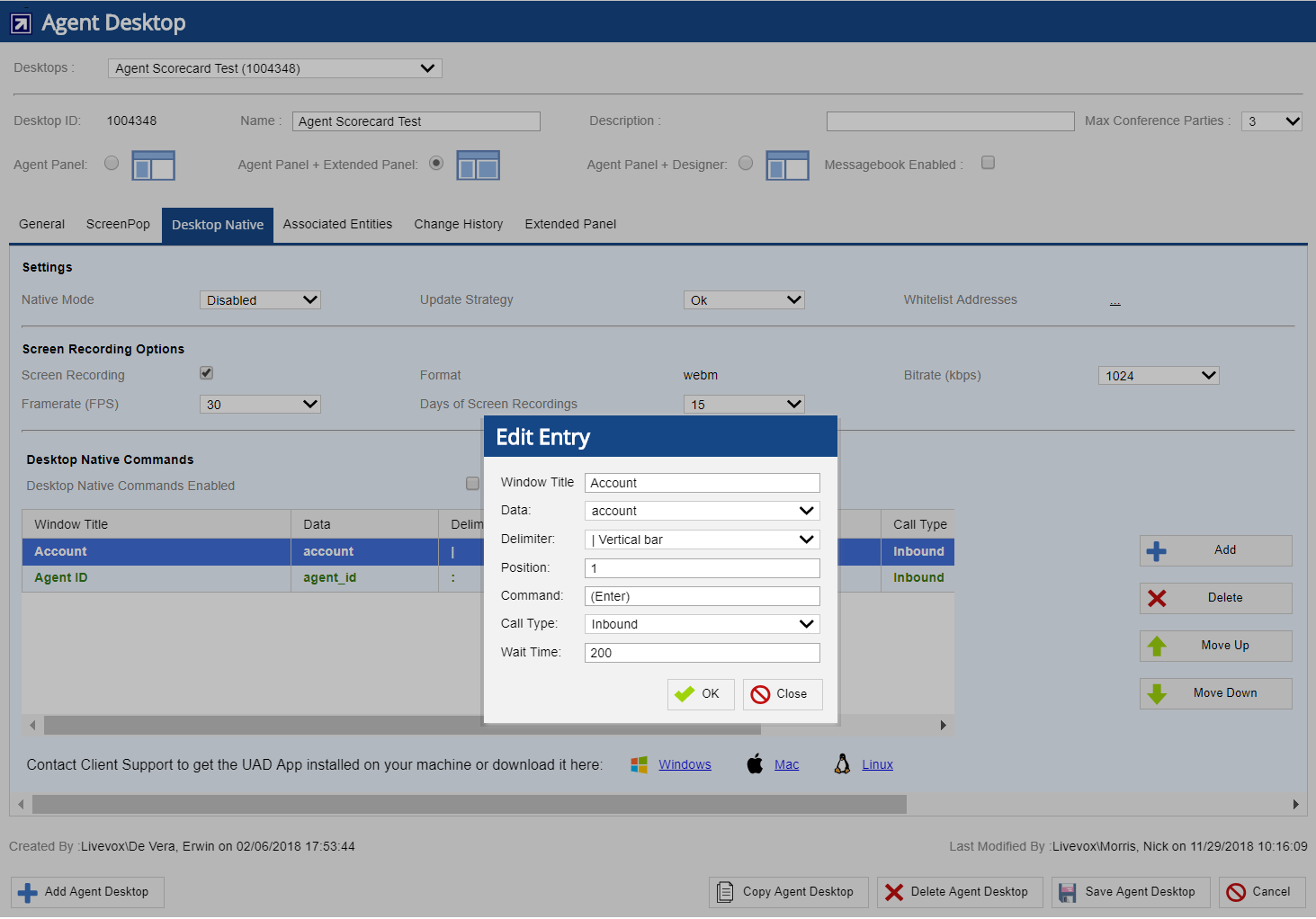
- Modify the required fields. For more information about the fields, please see Add Entry section above.
- Click OK to save the changes or Close to discard the changes.
- Click Save Agent Desktop button.