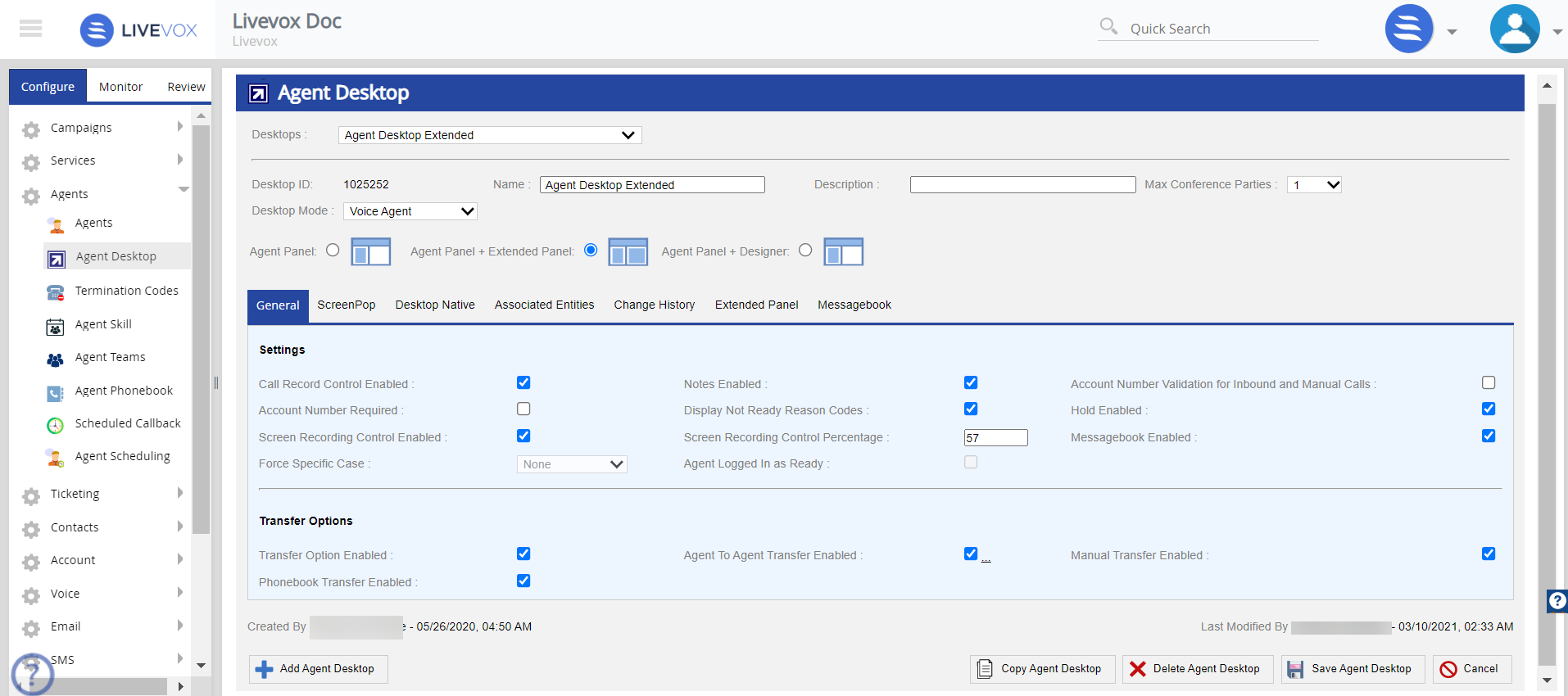
To access the Agent Desktop screen, go to Configure > Agents > Agent Desktop. The Agent Desktop screen appears as below.
The following fields are available in the main section.
| Field | Description | ||||||||
|---|---|---|---|---|---|---|---|---|---|
| Desktop ID | LiveVox assigned a unique desktop identifier code. | ||||||||
| Name | Displays the name of the selected Agent Desktop. | ||||||||
| Description | Displays a brief description of the selected Agent Desktop. | ||||||||
| Max Conference Parties | Select from the drop-down list the max number of participants that can be added by an agent into the conference (minimum value is 1, and the maximum value is 10). | ||||||||
| Desktop Mode | Select the agent desktop mode from the drop-down list. Available options are:
|
The Agent Desktop editor offers the following tabs:
| Tab | Description |
|---|---|
| General | Provides different options to set the current agent desktop and call transfer options. For detailed information, see the Agent Desktop - General Tab section. |
| ScreenPop | Allows to set the data fields shown on Agent Desktop with the sequence. For detailed information, see the Agent Desktop - ScreenPop Tab section. |
| Desktop Native | Allows to set configurations for agent's full-screen recording and .NET functionality. For detailed information, see Agent Desktop - Desktop Native Tab section. |
| Associated Entities | Displays the services that utilize the selected desktop. For detailed information, see the Agent Desktop - Associated Entities Tab section. |
| Change History | The Change History tab tracks and displays the changes made to the Agent Desktop. For detailed information, see the Agent Desktop - Change History Tab section. |
| Extended Panel | The Extended Panel tab allows users to configure the extended panel widgets of the selected Agent Desktop. For more information, see the Agent Desktop - Extended Panel Tab section. |
| Designer Panel | The Designer tab allows you to configure the designer desktop which can be assigned to the required Agent Desktop. For more information, see Agent Desktop - Designer Tab section. |
| Messagebook | The Messagebook tab allows the user to configure the Messagebook entries for the selected agent desktop. For more information, see the Agent Desktop - Messagebook Tab section. |
The Agent Desktop editor offers the following buttons:
| Button | Description |
|---|---|
| Add Agent Desktop | Creates a new agent desktop. |
| Copy Agent Desktop | Copies the selected agent desktop. |
| Delete Agent Desktop | Deletes the selected agent desktop. |
| Save Agent Desktop | Saves updates on the selected agent desktop. |
| Cancel | Discards the changes. |